Mini-WMS
Stock Count Screen
To perform a stock count, follow these steps:
Access the Stock Count Screen
Click the “Stock Count” button on the main screen.
Counting Options
- You can count stock by selecting either:
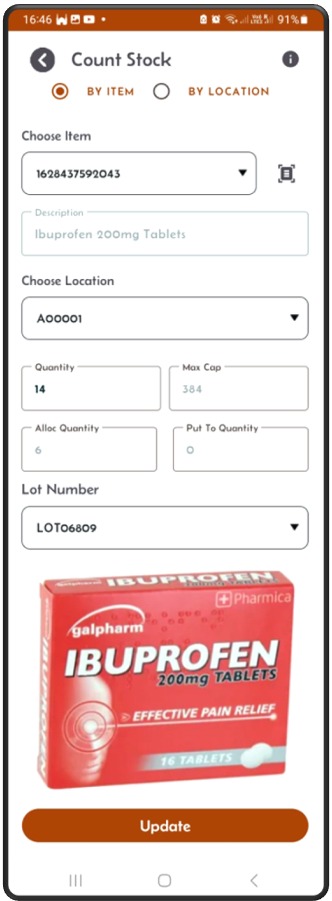
- By Item: Click on the Item radio button, and choose a specific item from the dropdown or use the barcode scanner to load the itemloc details, then update the quantity if neccesary.
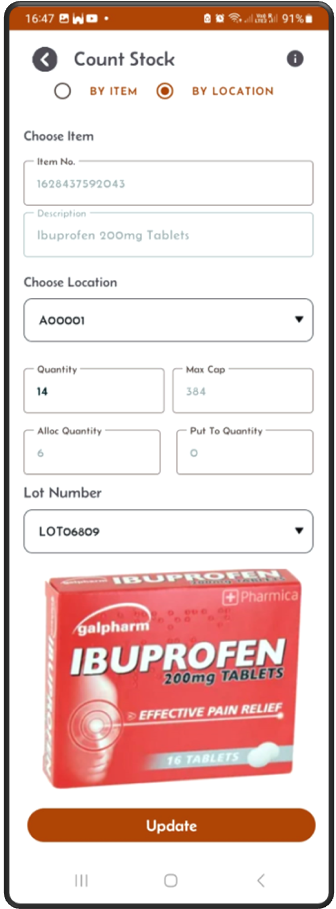
- By Location: Click on the Location radio button, and choose specific location from the dropdown locations to load the itemloc details, then update the quantity if neccesary.
Update Stock
- Once you select a location, the screen will display:
- The item stored in that location.
- If the item exists in multiple locations, then the location dropdown should show all the locations where this item exists.
- The quantity currently recorded in Mini-WMS.
- If your physical count differs, you can update the system with the correct quantity.
- Any location can hold only one item, Mini-WMS does not handle item-mixing.
Stock counting ensures your inventory data remains accurate, improving stock management and operational efficiency.
Stock Count Search Options
Option 1: Searching stock by item and update if necessary. Use barcode scanner if needed.
- If the item is lot controlled (Check the item screen, the lot control flag should be set).
- And if there are multiple lot numbers in the itemloc, then all those lots should be seen in the lot dropdown.
- Select from the lot dropdown to update each lot.
Option 2: Searching stock by location and update if necessary. Use barcode scanner if needed.
- If the item is lot controlled (Check the item screen, the lot control flag should be set).
- And if there are multiple lot numbers in the itemloc, then all those lots should be seen in the lot dropdown.
- Select from the lot dropdown to update each lot.