Mini-WMS
Picking Process
Allocation generates picking work to streamline order fulfillment. Follow these steps to begin:
Navigate to the Picking Screen
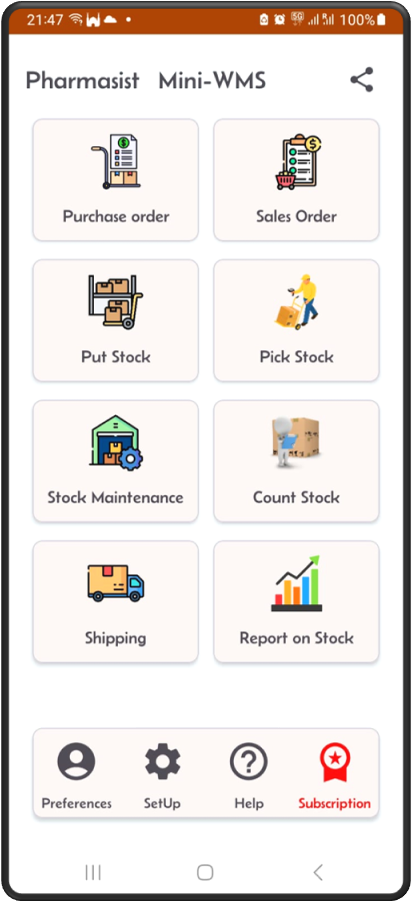
- Click on “Pick Stock” from the main screen.
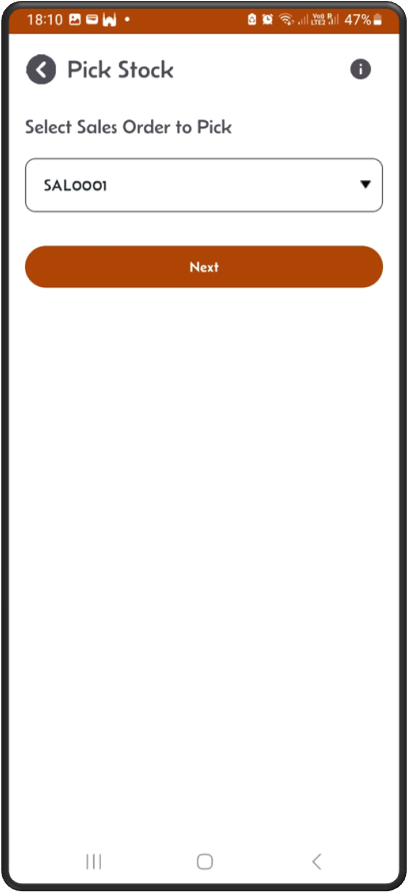
- Select the sales order you want to pick.
- Picking Options
The picking process in Mini-WMS offers flexibility to suit different scenarios:
- Pick full quantity: Fulfill the entire order line in one operation.
- Pick partial quantity: Pick part of the order and defer the rest for later.
- Short pick: Record a short pick for the sales order line, either as a zero pick or a partial pick.
Advanced Features
Mini-WMS supports advanced picking options for enhanced traceability and accuracy:
- Lot control: Pick stock based on lot numbers.
- Serial number tracking: Ensure precise tracking of serialized inventory.
Container Options
- You can pick the entire order into a single container, or distribute it across multiple containers as needed.
- This flexibility ensures accurate and efficient order fulfillment, tailored to your warehouse operations.
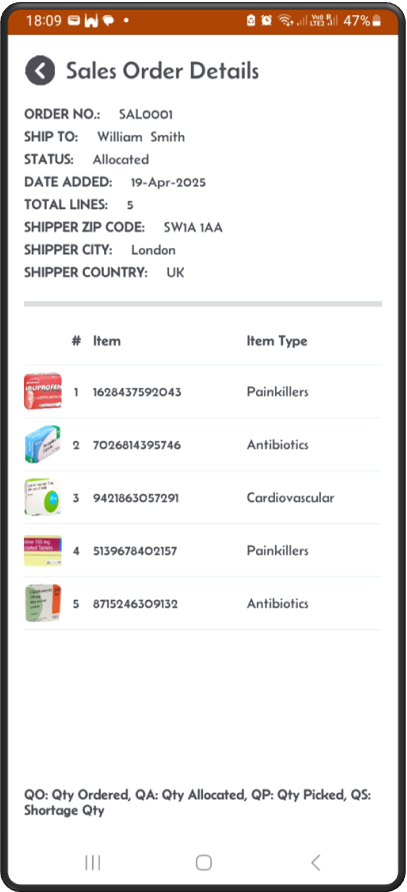
Step 1: Make sure an order is allocated.
Step 2: From main screen, click on the ‘Pick Stock’ button.
Step 3: Sales Order is ready for picking
You should see your SO in the dropdown.
Step 4: Picking from a location
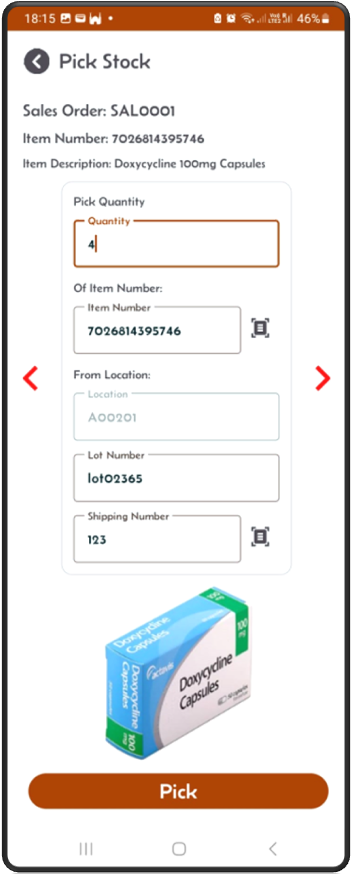
If the item is lot controlled, like medicine in this case, you have to provide a lot number.
Picking Options
You can pick the whole quantity at once, or part of it and leave the rest for later. You can also short pick some or all of it.
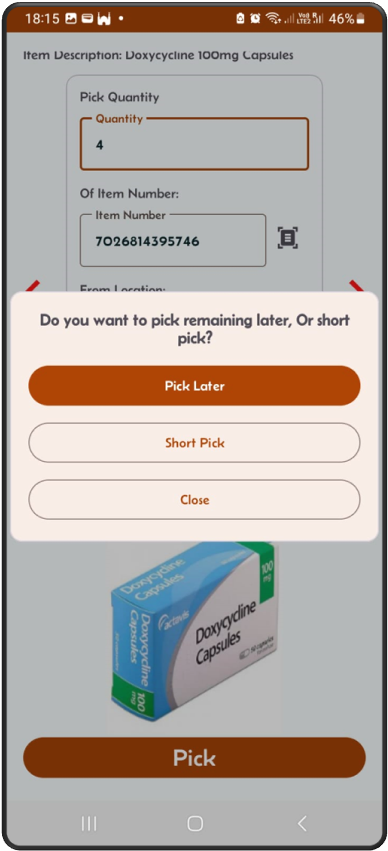
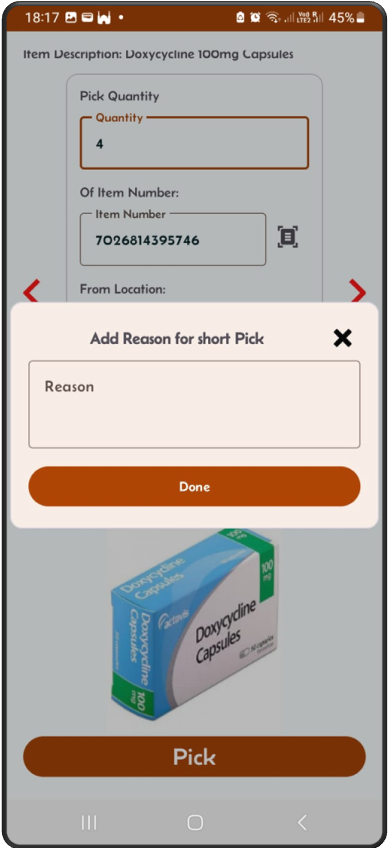
Short picking
You can short pick some or all of it.
⚠️ If the item is lot controlled and you want to short pick, you must enter zero in the quantity field.
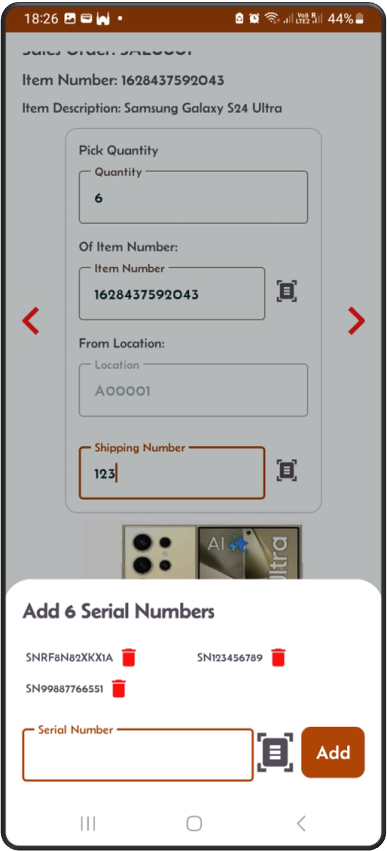
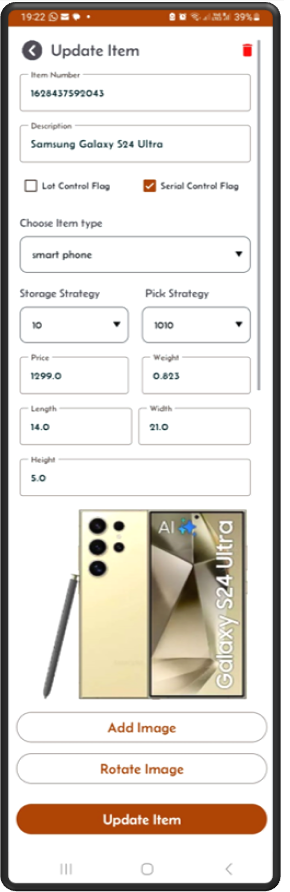
Picking a serial number controlled item.
Some stock can be serial number controlled like Phones/Laptops …etc.
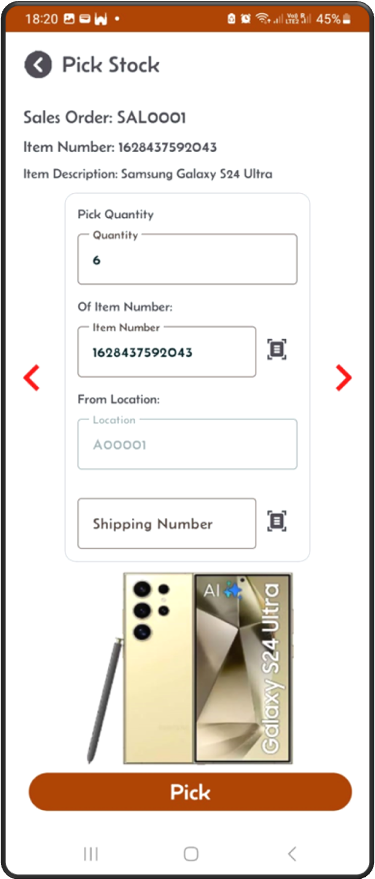
Here the item is serial Number Controlled.
The item screen should have the serial control flag set/ticked.
Picking a serial number controlled item.
Some stock can be serial number controlled like Phones/Laptops …etc.